Pepperstone Setup Guide
Connect your Pepperstone account to Level2 to enable fully automated execution and strategy deployment.
1. Access Your Pepperstone Account
(Log in)[https://pepperstone.com/en/platforms/trading-platforms/mt5 ] to your Pepperstone to manage your trading account or set up a new MetaTrader 5 (MT5) environment.
2. Locate Your MT5 Credentials
To connect MT5 to an external platform, you will need three specific credentials provided by Pepperstone:
- Navigate to the Accounts tab within your Pepperstone Client Area.
- Find your active MT5 account and note down your Account Login ID (Account Number) and the exact Server Name (e.g.,
Pepperstone-MT5-LiveorPepperstone-MT5-Demo). - Ensure you have your Master Password ready. If needed, you can reset your MT5 account password directly from the Pepperstone dashboard.
3. Connect to Level2

The final step is to bridge your credentials with the platform to enable execution.
- Open Connect api tab in Level2 and select Pepperstone.
- Enter your Login, Master Password, and Server into the corresponding fields:
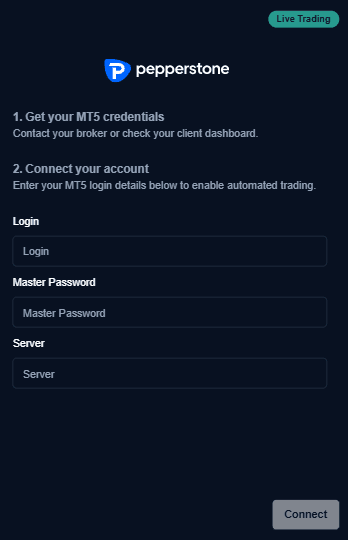
| Field | Description |
|---|---|
| Login | Your Pepperstone MT5 Account Number |
| Master Password | Your MT5 trading password |
| Server | Assigned server (e.g., Pepperstone-MT5-Live) |
- Click Connect. The system will verify the server handshake and enable fully automated trading.
Last updated on